Clean up resources
In this final step, we will clean up all AWS resources created during this workshop to avoid ongoing charges.
Make sure to follow these steps in order to completely remove all resources and avoid unexpected charges.
Step 1: Terminate EMR Cluster
First, we need to terminate the EMR cluster as it’s the most expensive resource.
- Go to AWS EMR Console
- Select your EMR cluster
- Click Terminate
- Confirm termination

Change your region to where you save EMR Cluster
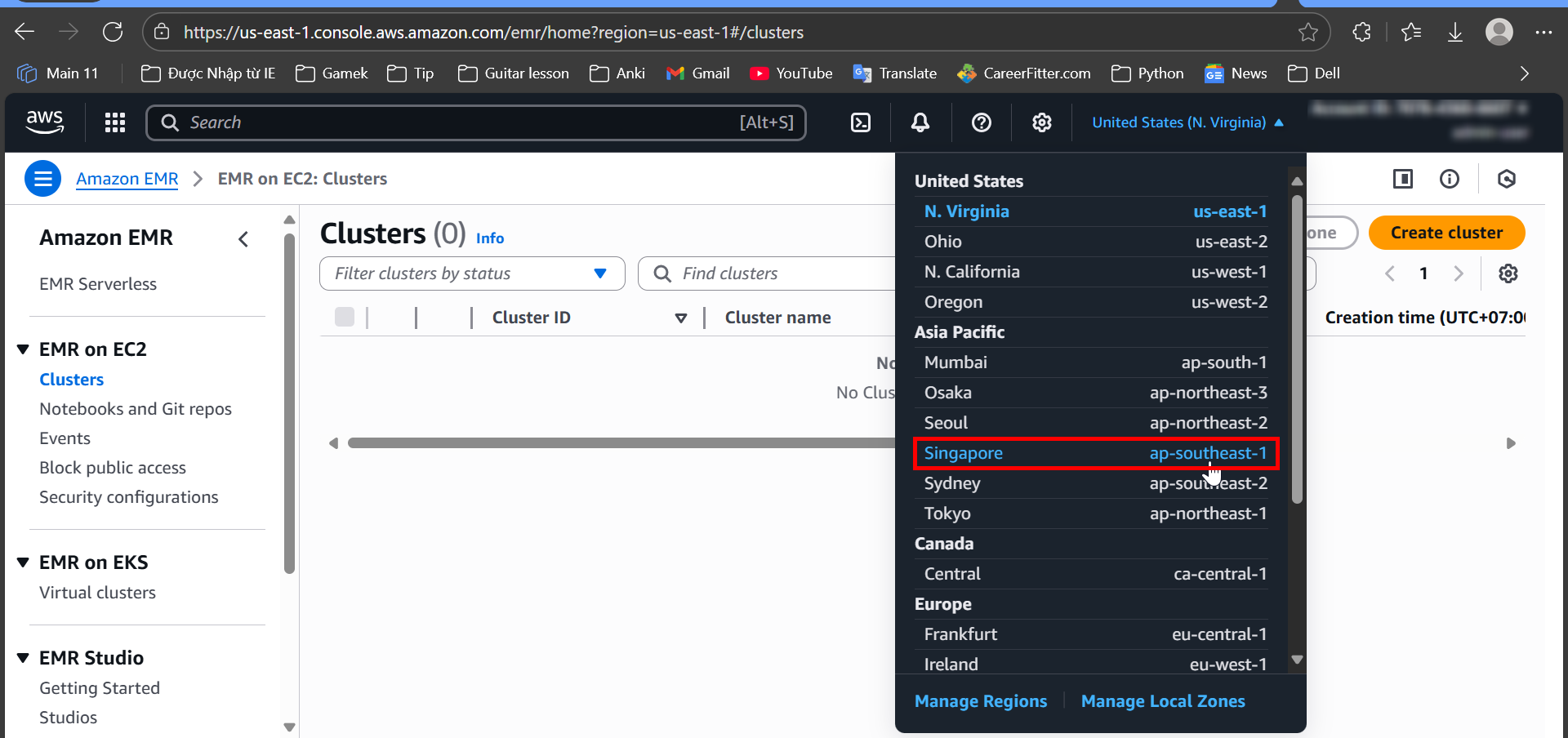
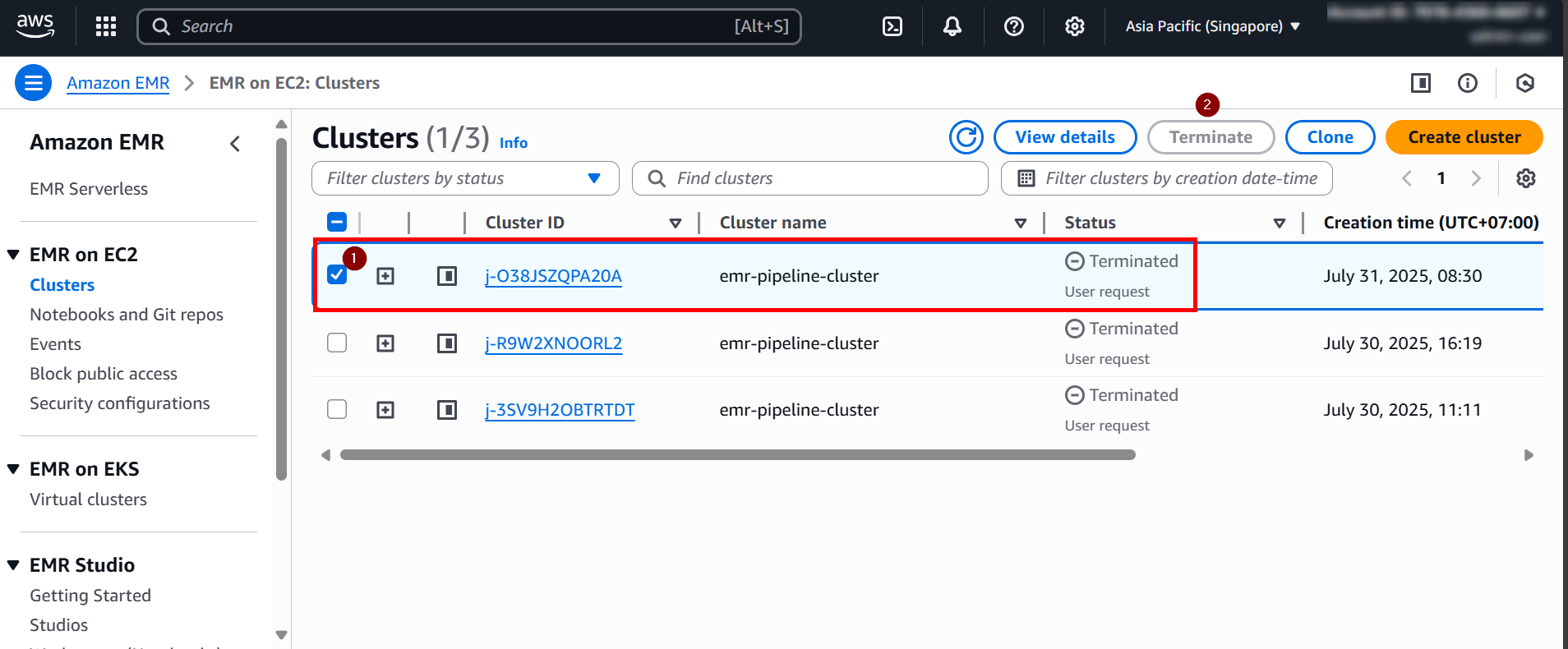
Wait for the EMR cluster to fully terminate before proceeding to the next step.
Step 2: Clean up VPC Resources
Go to VPC Console
- Go to AWS VPC Console
- Delete the VPC created for this project
Mine is
vpc-0c17b843293d26a07but your VPC may look different - This will automatically clean up:
- Subnets
- Security Groups
- Route Tables
- Internet Gateway

Step 3: Delete CDK Stacks
Use AWS CDK to destroy all the stacks we created:
cdk destroy EMRClusterStack
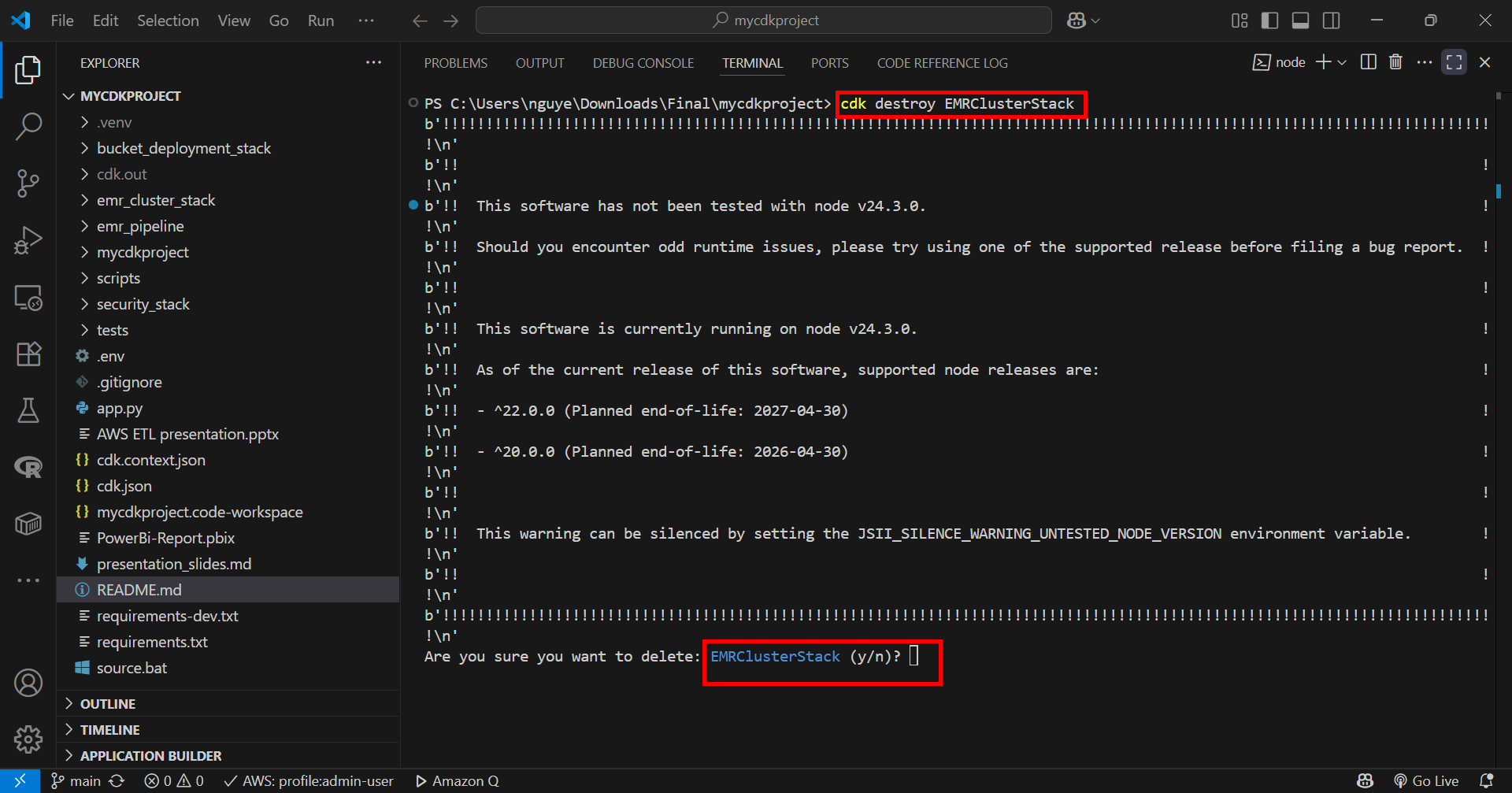

cdk destroy BucketDeploymentStack

cdk destroy SecurityStack
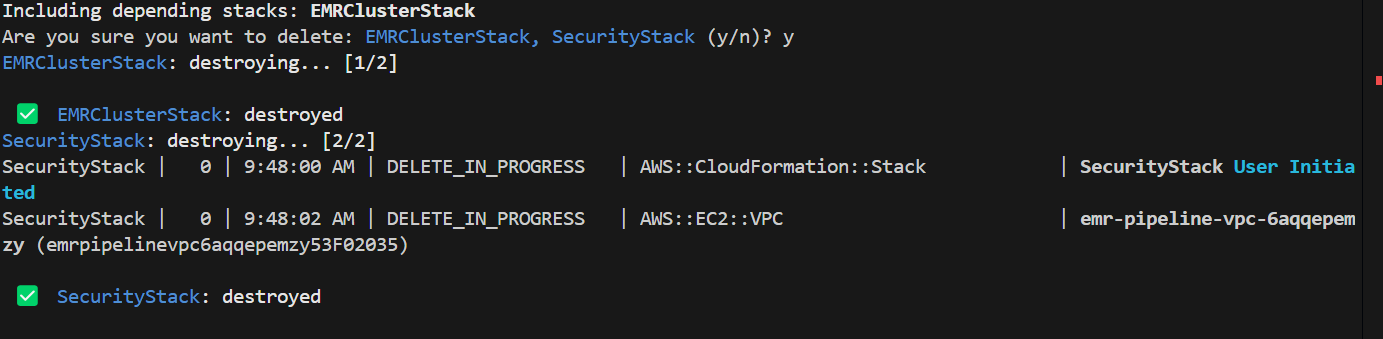
Type ‘y’ when prompted to confirm each stack deletion.
Step 4: Verify CloudFormation Stacks Deletion
- Go to AWS CloudFormation Console
- Check that all stacks are deleted or in DELETE_COMPLETE status
- If any stacks are stuck, manually delete them

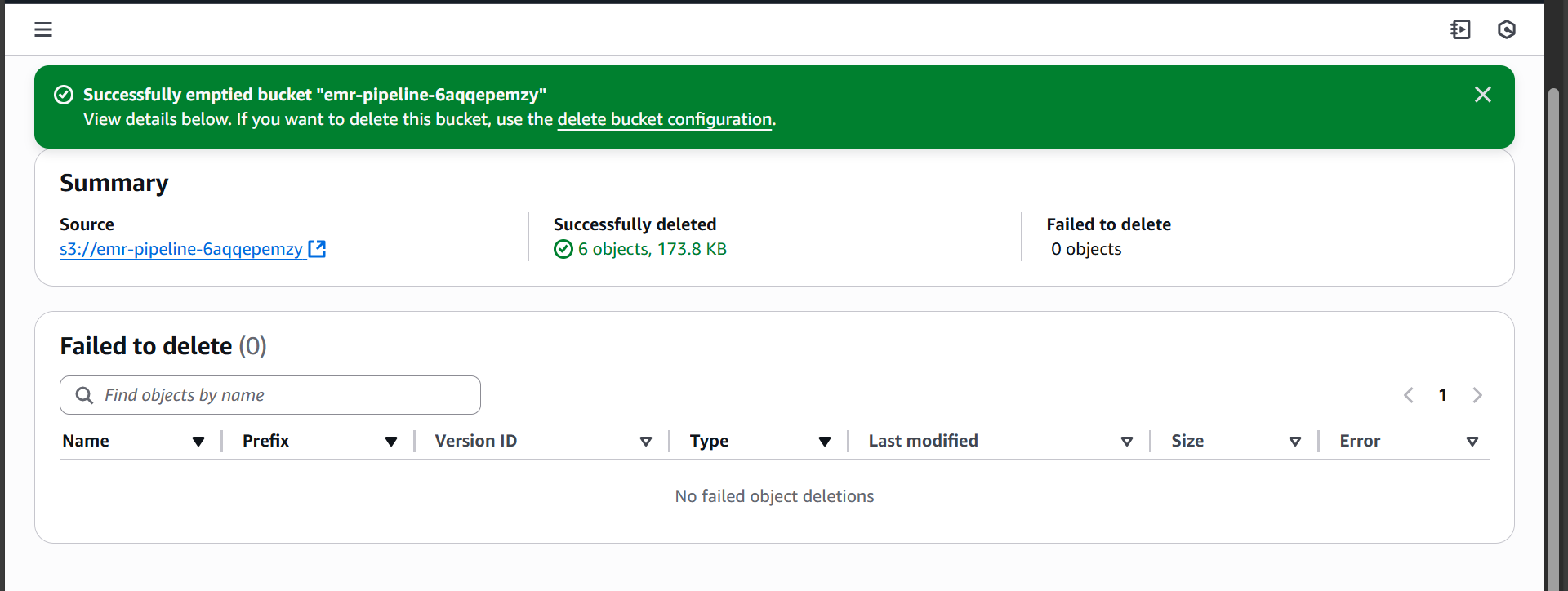
Step 5: Clean up S3 Buckets
- Go to AWS S3 Console
- Delete the primary bucket:
emr-pipeline-[your-nanoid] - Delete the log bucket:
emr-logs-[your-nanoid] - Delete the CDK bootstrap bucket:
cdk-hnb659fds-assets-[account-id]-[region]

Make sure to empty the buckets before deleting them.
Step 6: Remove IAM Roles (if needed)
- Go to AWS IAM Console
- Check for any remaining EMR-related roles
- Delete roles that were created for this project:
EMR_EC2_DefaultRoleEMR_DefaultRole- Any custom roles created by EMR that you’ll know is unnecessary

Step 7: Remove Key Pairs
- Go to AWS EC2 Console
- Navigate to Key Pairs
- Delete the key pair used for EMR cluster access

Step 8: Verify All Resources are Deleted
Check the following AWS services to ensure no resources remain:
- EMR: No active clusters
- EC2: No running instances
- S3: No project-related buckets
- VPC: No custom VPCs
- IAM: No project-specific roles
- CloudFormation: No active stacks
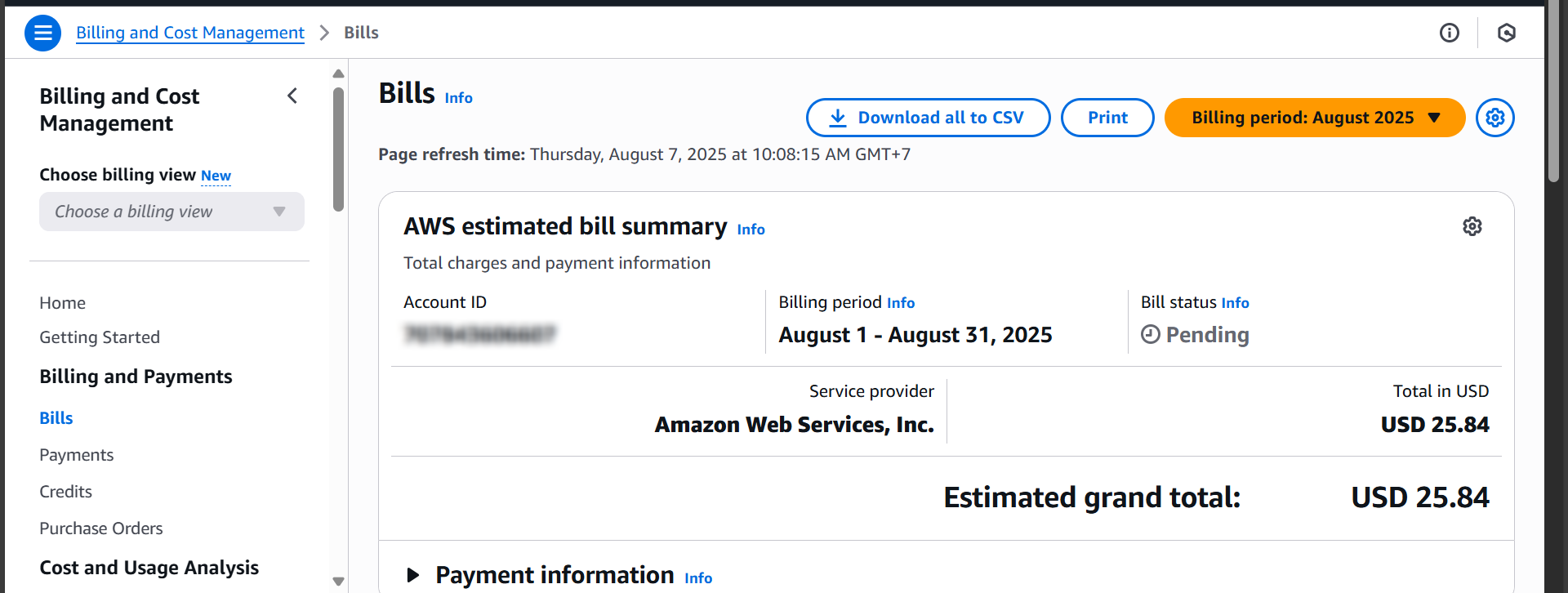
Step 9: Check AWS Billing
- Go to AWS Billing Console
- Review current charges
- Set up billing alerts if not already configured
- Monitor for any unexpected charges over the next few days
Don’t worry, your cost it’s not gonna be this high. This is because i have left the project a few days so it charge me that much.
It may take up to 24 hours for all charges to stop appearing in your billing dashboard.
Cleanup Commands Summary
For quick reference, here are all the cleanup commands:
# Destroy CDK stacks
cdk destroy EMRClusterStack
cdk destroy BucketDeploymentStack
cdk destroy SecurityStack

# Verify stack deletion
aws cloudformation list-stacks --stack-status-filter DELETE_COMPLETE

# List remaining S3 buckets
aws s3 ls
Congratulations! You have successfully completed the workshop and cleaned up all AWS resources. Your AWS account should no longer incur charges from this project.
Troubleshooting
If you encounter issues during cleanup:
- Stack deletion fails: Check dependencies and delete resources manually
- S3 bucket won’t delete: Ensure bucket is completely empty
- EMR cluster won’t terminate: Force terminate from console
- Billing charges continue: Contact AWS support if charges persist after 48 hours
